VPhoneGaGa Stuck at 99% or 100%? How to Fix It
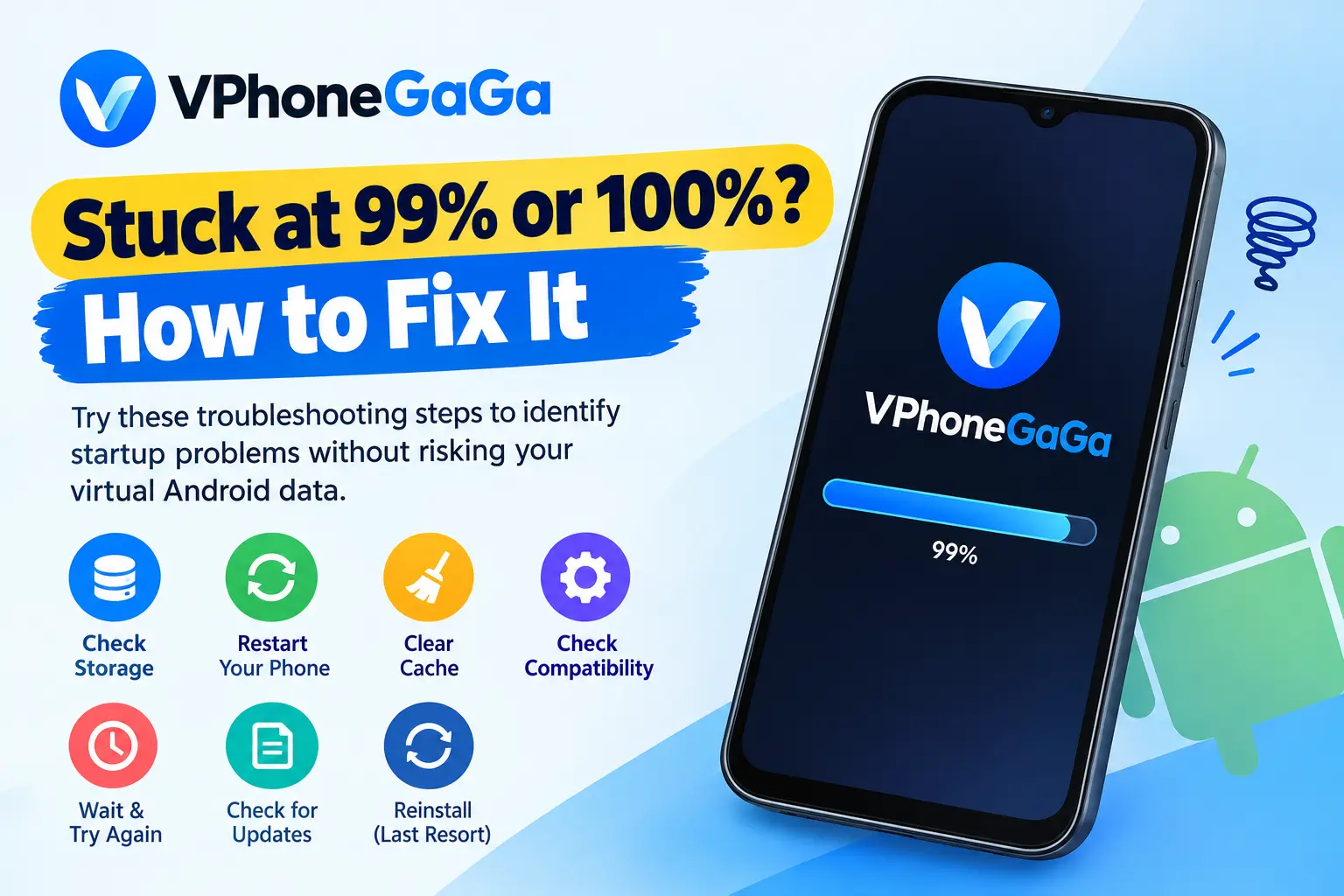
VPhoneGaGa may get stuck at 99% or 100% while starting its virtual Android environment. The loading screen may remain unchanged, even after waiting.
This does not automatically mean your phone is damaged. The cause could involve available storage, memory, an incomplete setup, or a compatibility problem.
Follow these steps in order. Start with the checks that do not remove your data.
1. Wait and Check Whether the App Is Frozen
The first launch may take longer than later launches. VPhoneGaGa needs to prepare its virtual environment before you can use it.
Try these checks:
- Wait a few minutes without repeatedly closing the app.
- Check whether the loading percentage changes.
- Notice whether your phone becomes unusually hot or slow.
- If nothing changes, close VPhoneGaGa and reopen it.
If the loading screen remains stuck after another attempt, continue to the next step.
2. Check Your Phone’s Free Storage
A virtual Android environment needs storage for its files and installed apps. Low storage can also cause problems with other Android apps.
Open your phone’s Settings and check the available storage. If space is running low, remove unwanted downloads or move large files elsewhere.
Google recommends checking free storage when an Android device has problems. Its general troubleshooting guidance notes that issues can occur when less than 10% of storage remains available.
3. Close Background Apps and Restart Your Phone
VPhoneGaGa uses your phone’s hardware resources to run a separate Android environment. Other running apps can compete for available memory.
Try this simple process:
- Close apps you are not using.
- Restart your phone.
- Wait for the phone to finish starting.
- Open VPhoneGaGa before launching other demanding apps.
If the virtual environment starts successfully, memory pressure may have contributed to the problem. This test alone does not prove the exact cause.
4. Check for a Version or Compatibility Problem
Sometimes, a problem begins after an app update or an Android system update. A particular release may not work well with your device.
Check the following details:
- Your phone model and Android version.
- The VPhoneGaGa version installed on your phone.
- Whether the problem started after an update.
- Whether the same issue occurs every time you start the virtual environment.
If the issue began after updating, review the available information on our VPhoneGaGa older versions.
Do not downgrade immediately. First, back up important data and confirm that the older release suits your device. Installing an older APK can introduce security and compatibility risks.
5. Clear the App Cache
Temporary files can sometimes contribute to app problems. Clearing the cache is a reasonable troubleshooting step before considering a reset.
On most Android phones:
- Open Settings.
- Select Apps or App Management.
- Find VPhoneGaGa.
- Open Storage or Storage Usage.
- Select Clear cache, if available.
- Launch VPhoneGaGa again.
Menu names vary by phone and Android version.
Do not select Clear data or Clear storage by mistake. Those options may reset the app or remove locally stored information. Clearing the cache is not the same as resetting app data.
6. Check Whether the Virtual Environment Is the Problem
If VPhoneGaGa still stops at the same percentage, note when the issue first appeared.
For example, did it happen after an update, a settings change, or an interrupted first launch?
Record the error message, if one appears. Also note your phone model, Android version and app version.
These details can help you distinguish a device-specific problem from a broader app issue. Avoid changing several settings at once, because that makes the cause harder to identify.
You can also review our VPhoneGaGa homepage for the available app information and version details.
7. Reinstall Only as a Last Resort
Reinstalling may help when other troubleshooting steps fail. However, removing VPhoneGaGa can affect the virtual environment and its stored apps or data.
Before reinstalling:
- Back up important information using an available backup method.
- Confirm that the backup can be accessed.
- Check that you have enough storage for a fresh installation.
- Use a source you trust when obtaining the APK.
Do not assume your cloned apps, accounts or files will return automatically after reinstalling. If you cannot access the virtual environment to create a backup, consider contacting the app’s developer before removing it.
Why Does VPhoneGaGa Stop at Exactly 99% or 100%?
The percentage alone does not identify the cause. A loading bar can reach its final stage without the virtual environment becoming usable.
Possible causes include limited resources, an incomplete startup process or compatibility issues. However, the exact cause cannot be confirmed without more information about the device and app version.
Avoid treating a specific ROM, processor type or setting as the universal solution. A fix that helps one device may not work on another.
Frequently Asked Questions
Conclusion
If VPhoneGaGa remains stuck at 99% or 100%, do not keep changing settings at random. Start with storage, a restart and cache clearing. Then investigate recent updates and compatibility.
Protect your virtual environment before attempting a reset or reinstall. If the problem continues, collect the device and version details so the cause can be investigated more accurately.