How Developers Can Use VPhoneGaga for App Testing
Testing a new app directly on your everyday phone is not always the best choice. An unstable build can crash, store unwanted test data, or interfere with the apps you use every day. That is why many developers and testers use a separate testing environment before installing software on their primary device.
VPhoneGaga Apk creates a Virtual Android environment that runs independently from your main Android OS. This separate workspace allows you to install compatible APK files, sign in with different accounts, and check how an app behaves without mixing test data with your personal apps. While it is useful for many testing tasks, it should not replace testing on a real device before a public release. The Android developer documentation also recommends validating apps on physical hardware because real devices can behave differently from virtual environments.
Why Developers Use a Virtual Android Environment
During app development, developers often test multiple versions of the same application. They may need to verify a login screen, review a new feature, or confirm that an update works correctly. Doing this on a primary phone can become confusing because test data mixes with personal data.
A virtual environment keeps testing separate. You can install a test build inside the virtual workspace while leaving your everyday apps unchanged. If something goes wrong, you can remove the test app without affecting the rest of your device. This approach is also useful for QA testers, beta testers, app reviewers, and content creators who regularly work with new APK files.
1-No Risk to Your Main Workspace
No testing method is completely risk-free, but using a virtual environment helps reduce the chance of affecting your primary workspace. Apps installed inside VPhoneGaga run in a separate environment instead of directly alongside your personal apps. This App Isolation helps keep test files, app settings, and login sessions organized.
For example, if you are testing a beta messaging app, your personal messaging account on the main device remains separate from the account used inside the virtual environment. Keep in mind that both environments still share your phone’s hardware, including the CPU, RAM, storage, and battery. Performance depends on your device specifications.
2-Save Money During Early Testing
Many independent developers and small teams do not own several Android phones for testing. A virtual environment allows you to perform many early-stage checks on a single device. You can install a development build, review user interface changes, test updates, and switch between accounts without purchasing another phone for every scenario.
Before publishing an app, it is still good practice to test on at least one physical device because hardware, cameras, sensors, and manufacturer software can affect how an app performs.
3-Try New Ideas Safely
Every update begins as an experiment. Developers may change the design, add a feature, or improve app performance. Instead of replacing the version already installed on the main phone, they can install another build inside the virtual environment. This makes it easier to compare versions, identify bugs, and verify whether new changes work as expected. Many developers also use this workflow when testing apps across Android 12, 13, 14, and 15-compatible devices.
4-Easy to Use for Daily Testing
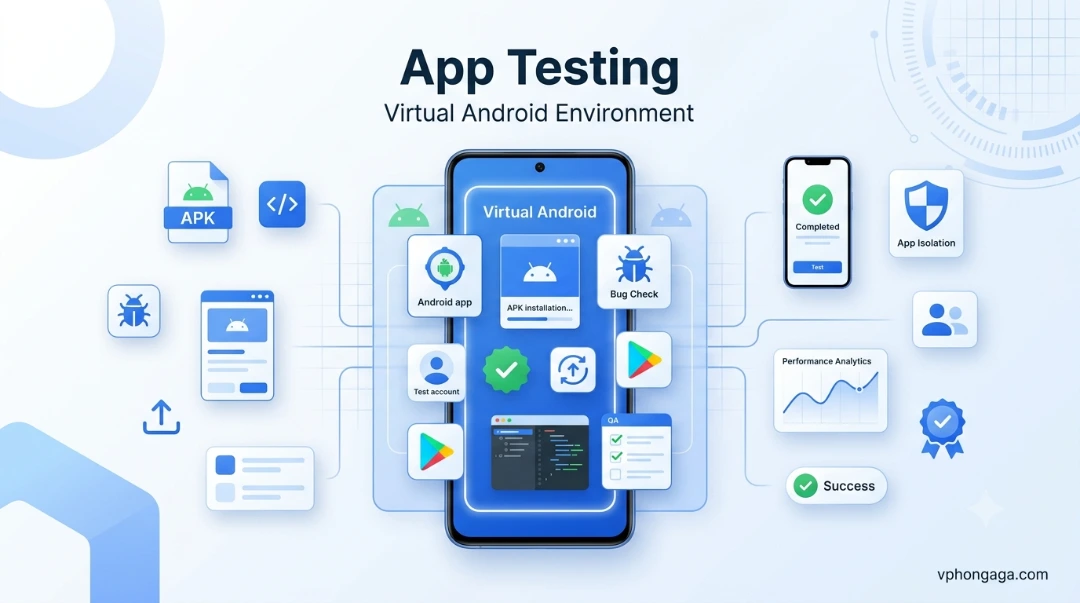
Setting up a testing environment should not take longer than the testing itself. After installing VPhoneGaga, you can create a virtual workspace, install compatible APK files, and launch apps inside that environment. If supported, Google Play Services and the Play Store can also be used for downloading or updating compatible apps.
For most users, the basic workflow is simple:
- Open the virtual environment.
- Install or import an app.
- Sign in with a test account.
- Check app behavior.
- Remove the app or install another build when needed.

How VPhoneGaga Supports Separate Testing Environments
Many developers need dual accounts while testing an application.
For example, a messaging app may require one account to send messages and another to receive them. A social media app may need separate accounts for testing notifications, comments, or profile settings.
VPhoneGaga allows compatible apps to run inside a separate virtual workspace, making it easier to manage multiple accounts without repeatedly signing in and out of the same application. This approach is also useful for business users who want to keep work and personal accounts separate on one phone.
Virtual Android vs Android Emulator
Although both are used for testing, they serve different purposes.
Neither replaces physical device testing. Many developers use all three methods because each provides different advantages.
Frequently Asked Questions
Conclusion
VPhoneGaga gives developers and testers a practical way to evaluate compatible apps without mixing test data with their everyday workspace. Whether you are checking a new feature, testing multiple accounts, or installing a beta APK, a virtual Android environment can make the process more organized and efficient.
For the best results, use a virtual environment during development and always complete final testing on a physical Android device before releasing your app. This balanced approach helps identify software issues while ensuring the app performs as expected in real-world conditions.