How to Use Dual Accounts in VPhoneGaga
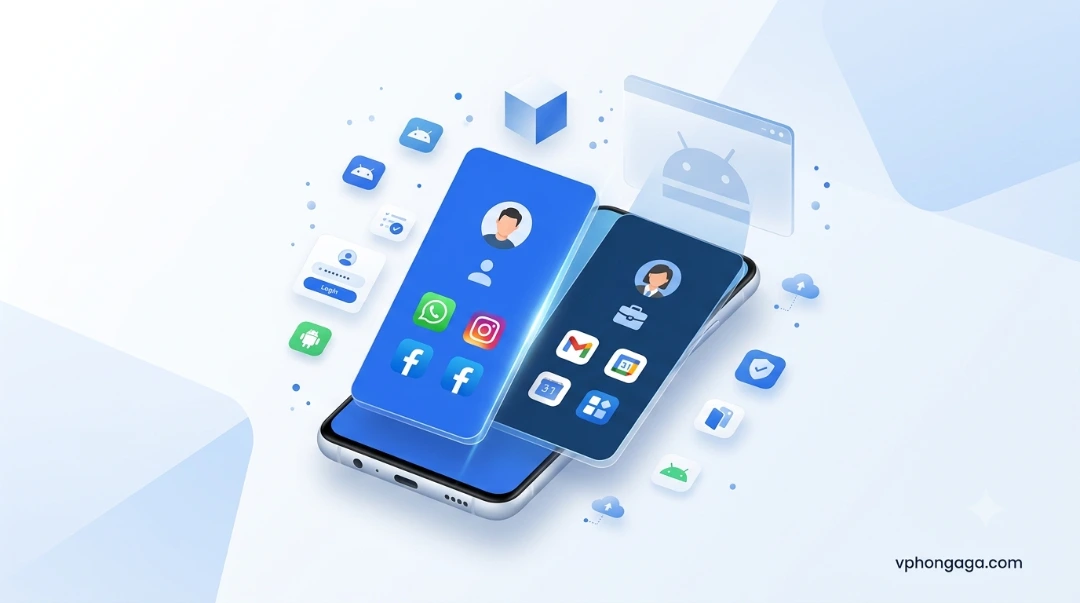
Managing more than one account on the same phone has become common for work, business, gaming, and social media. While some Android phones include built-in dual app features, they often support only a small number of applications. VPhoneGaga offers another option by creating a separate Virtual Android environment where compatible apps can run independently from your primary Android OS.This guide explains how dual accounts work, when they are useful, and what you should know before using them.
Why Use Dual Accounts?
Many people need separate accounts for different purposes. Common examples include:
Common examples include:
- Keeping work and personal messaging separate.
- Managing two social media profiles.
- Testing an app with different user accounts.
- Using separate gaming profiles.
- Keeping business apps away from personal data.
Instead of signing out and back in repeatedly, you can keep compatible accounts active at the same time.
How VPhoneGaga Makes Dual Accounts Possible
VPhoneGaga creates a Virtual Environment inside your phone. Apps installed there operate separately from the versions installed on your primary system.
For example, you can keep one account on your main device while signing into another account inside the virtual workspace. Since each environment stores its own app data, settings, and login information, switching between accounts becomes much easier.
This method is different from simply cloning an app because the virtual environment acts like a separate Android workspace.
App Cloning vs Built-In Dual Apps
Many Android brands offer built in dual app features, but they are usually limited to selected messaging or social apps.
A virtual Android environment provides greater flexibility because it supports many compatible applications inside one workspace.
| Feature | Built-in Dual Apps | VPhoneGaga |
|---|---|---|
| Separate Android Workspace | No | Yes |
| Supports Many Compatible Apps | Limited | Yes |
| Separate App Data | Yes | Yes |
| Multiple Account Management | Limited | Yes |
| Requires Another Phone | No | No |
If your phone already includes a built in dual app feature and it supports the app you need, that may be the simplest option. A virtual environment becomes more useful when you need broader compatibility or a dedicated testing space.
How to Set Up Dual Accounts
Setting up a second account usually takes only a few minutes.
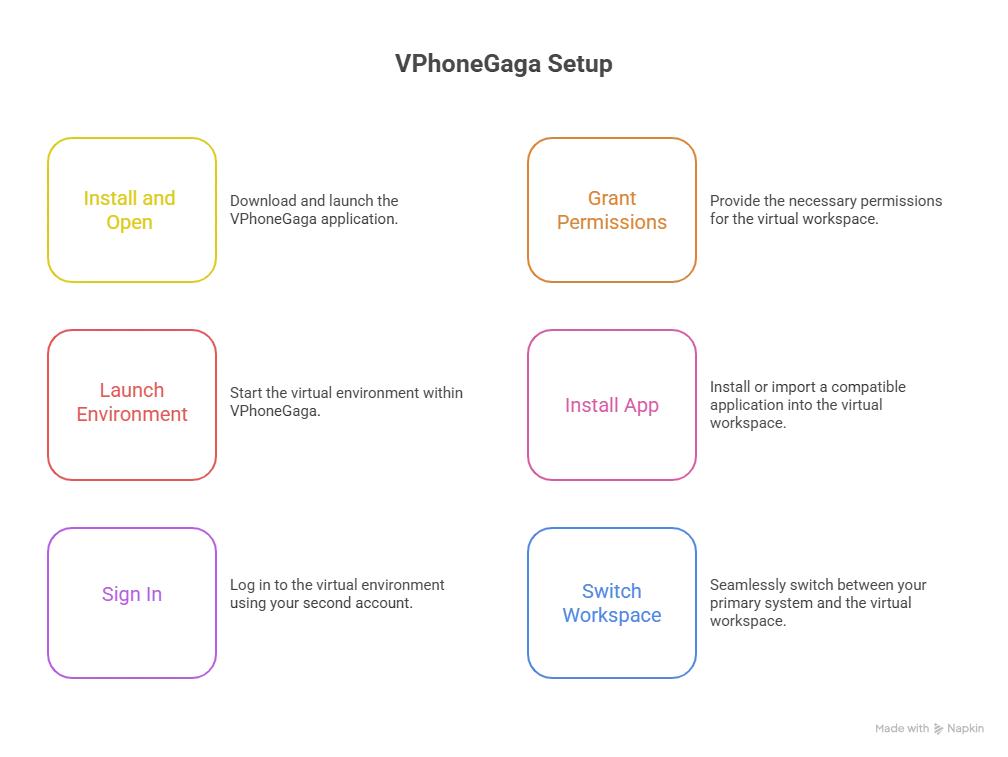
The original app on your phone remains separate from the one running inside the virtual environment.
Who Benefits Most from Dual Accounts?
Will Dual Accounts Affect Performance?
Running two instances of an app uses additional device resources.
Performance depends on factors such as:
- Available RAM.
- CPU performance.
- Free storage.
- Battery Optimization settings.
- Android version.
Phones with more memory and an ARM64 processor generally provide a smoother experience than older devices with limited resources.
Why Some Apps May Not Work
Not every app behaves the same inside a virtual environment.
Some banking, payment, and security-focused apps use technologies such as Play Integrity to verify the environment in which they are running. Depending on how these checks are implemented, certain apps may have limited functionality or may not run as expected. Google recommends Play Integrity for helping developers detect modified or untrusted environments.(developer.android.com)
If an app relies on Google Play Services, compatibility also depends on whether those services are available and functioning correctly inside the virtual workspace.
Best Practices for Using Dual Accounts
To improve stability:
These simple steps can improve the overall experience while reducing unexpected issues.
Frequently Asked Questions
Conclusion
Using dual accounts does not always require carrying two phones. VPhoneGaga provides a practical way to keep compatible apps, accounts, and test data inside a separate virtual workspace while leaving your primary Android environment unchanged.
Whether you manage business profiles, test applications, or simply want to separate work from personal use, choosing the right approach depends on your device, the apps you use, and your daily workflow.