VPhoneGaGa Internet Not Working? Connection and Google Services Fixes
VPhoneGaGa may open normally while apps inside its virtual Android environment cannot connect to the internet. Google Play may keep loading, downloads may fail, or sign-in may not complete.
The cause is not always VPhoneGaGa itself. Your phone’s connection, virtual environment, app settings, or Google services may be involved.
Try these steps one at a time. Test the connection after each step so you can identify what helps.
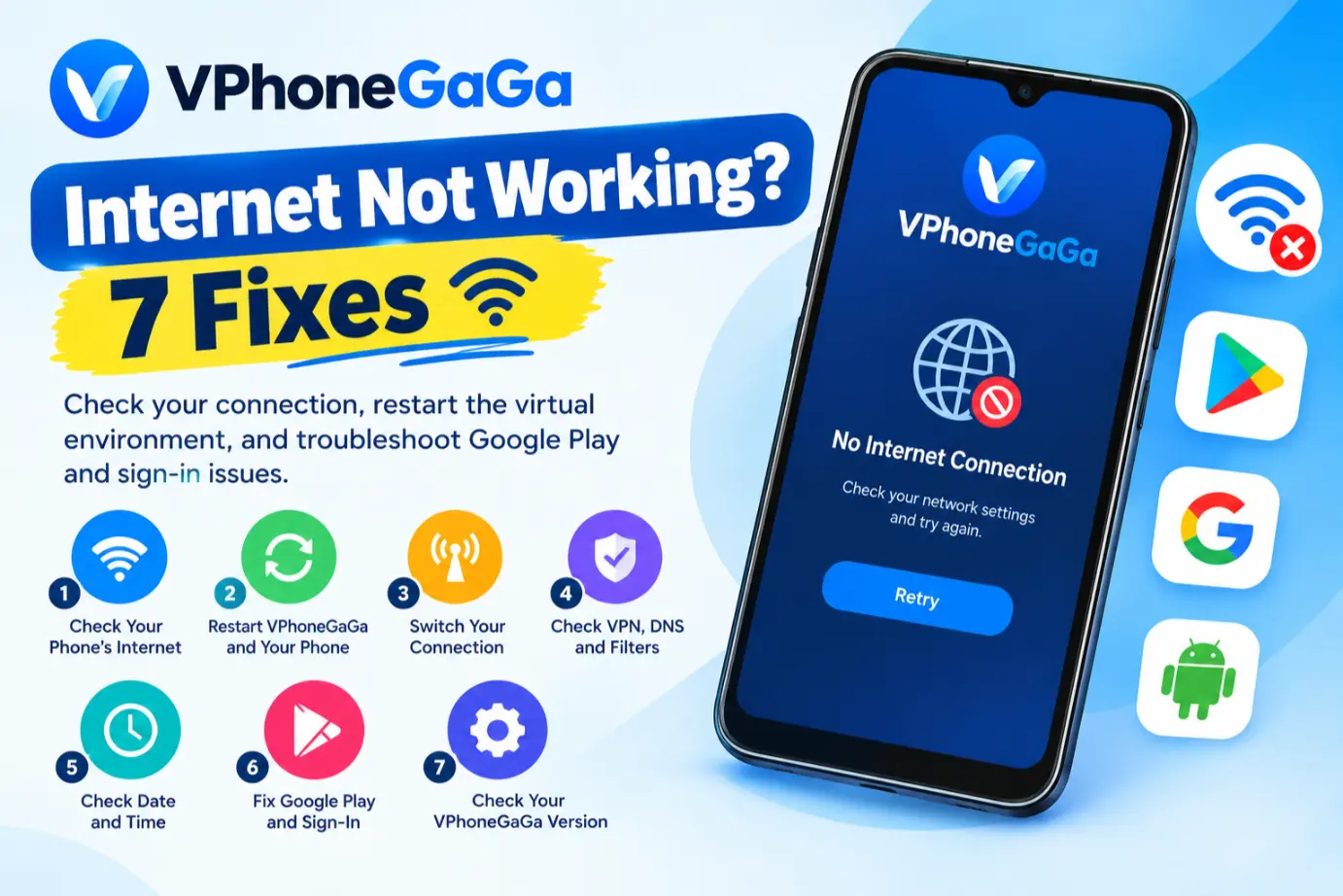
1. Check Whether Your Phone Has Internet Access
First, make sure your main Android system can access the internet.
- Close VPhoneGaGa.
- Open Chrome or another browser on your phone.
- Visit a website you have not opened recently.
- If it does not load, switch between Wi-Fi and mobile data.
- Reopen the browser and test again.
If the internet fails outside VPhoneGaGa too, fix your phone’s connection first. Restart your router if other devices on the same Wi-Fi network also have problems.
Google recommends checking the connection and switching networks when Android apps cannot access the internet.
If your main phone works but VPhoneGaGa does not, continue to the next step.
2. Restart VPhoneGaGa and Your Phone
A temporary problem may affect the virtual environment or its network connection.
Follow these steps:
- Close VPhoneGaGa.
- Open your recent apps and dismiss it.
- Restart your phone if the problem continues.
- Open VPhoneGaGa again.
- Wait for the virtual Android environment to finish loading.
- Test a browser or another app inside it.
Avoid repeatedly force-stopping the app while the virtual environment is still starting. Give it enough time to load before testing the connection.
If the internet still fails only inside VPhoneGaGa, move to the next check.
3. Switch Your Internet Connection
A Wi-Fi network may work for browsing but still have restrictions that affect certain apps or services.
Test another connection to narrow down the problem.
- If you use Wi-Fi, try mobile data.
- If you use mobile data, try a trusted Wi-Fi network.
- If you use a public network, check whether it requires a sign-in page.
- If other devices also lose access, restart the router when possible.
After switching networks, reopen the affected app inside VPhoneGaGa.
If it works on one network but not another, the issue may be related to that network rather than the virtual environment.
4. Check VPN, Private DNS, and Network Filters
VPN apps, custom DNS settings, firewalls, and ad-blocking tools can sometimes prevent apps from reaching particular services.
If you use any of these tools, test the connection with them temporarily disabled, provided it is safe to do so.
On Android, Private DNS settings are usually available under Settings → Network & internet → Private DNS. The exact menu may differ by phone.
Change only one setting at a time. Reopen VPhoneGaGa and test the affected app after each change.
If disabling a setting makes no difference, restore its original value. Do not install unknown VPN or DNS apps to try random fixes.
5. Check Date and Time Settings
Incorrect device time can interfere with secure connections and account sign-in.
On your main phone:
- Open Settings.
- Find Date and time.
- Enable automatic date and time.
- Enable automatic time zone if available.
- Restart VPhoneGaGa and test again.
If the virtual Android environment has its own date and time settings, check those too.
Menu names can vary by Android version. Do not change the date manually to an incorrect value as a troubleshooting trick.
6. Fix Google Play Store Loading or Sign-In Problems
If websites work inside VPhoneGaGa but Google Play does not, the problem may be limited to the Play Store or Google services.
Start with the least disruptive steps.
Clear the Play Store cache
Inside the virtual Android environment:
- Open Settings.
- Go to Apps or App management.
- Select Google Play Store.
- Open Storage or Storage and cache.
- Tap Clear cache if the option is available.
- Reopen the Play Store and test it.
Menu names vary between virtual Android versions.
Clearing the cache removes temporary files. Avoid selecting Clear data or Clear storage at first because these actions may reset app settings or remove stored information.
Check Google Play services
If the Play Store still cannot sign in, check whether Google Play services is present and enabled inside the virtual environment.
If an update is offered through a trusted, supported method, follow the available instructions. Not every VPhoneGaGa version provides the same settings or Google services support.
Do not clear Google Play services data as an early fix. Google warns that doing so can remove saved information and require you to sign in again.
7. Check Your VPhoneGaGa Version
If the connection problem started after an update, record your current version and check whether the issue continues after restarting.
You can also review the available releases on our older versions page.
Do not downgrade immediately. An older release is not guaranteed to fix a network issue, and replacing an installation may affect your virtual environment or its data.
Before changing versions, back up any important files or information you can access. Only consider another compatible release if simpler checks have failed and you understand the risks.
If none of these steps works, record your phone model, Android version, VPhoneGaGa version, affected app, and any error message. These details make further troubleshooting more useful.
Frequently Asked Questions
Conclusion
When VPhoneGaGa internet is not working, start by checking your phone’s connection. Then restart the virtual environment, test another network, and review settings that may block connections.
If only Google Play or sign-in fails, troubleshoot that service separately. Avoid clearing data, resetting the environment, or changing versions until you have tried the safer steps.
If the problem continues, document the exact error and your device and app versions. This is more useful than changing several settings at once.